Login to Point of Sale System
Open the MovieQuick POS on your counter system. Log in with the credentials provided by your manager. You can only access the system and counter you have been assigned to.
- Use your assigned staff login credentials
- Your login is locked to your assigned system and theatre
- The POS dashboard loads with your active orders
- Contact your manager if you face any login issues
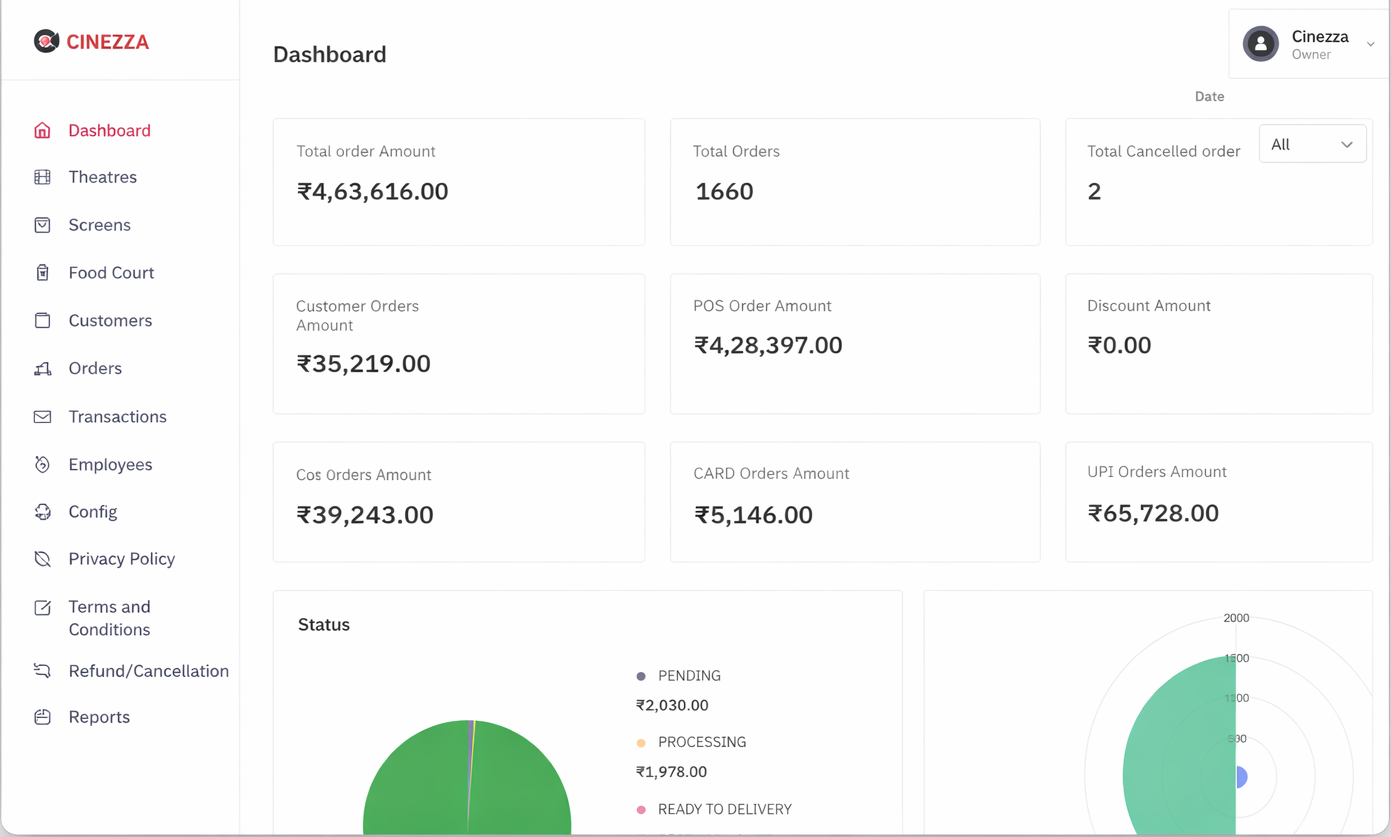
Receive Incoming Orders with Bell Alert
When a customer places a food order using a QR code from their seat, you receive an instant bell sound alert on the POS. The order appears automatically on screen with PENDING status.
- Instant bell sound when a new order arrives
- Order details displayed immediately on screen
- Order shows screen number, seat, and items
- All new orders arrive with PENDING status
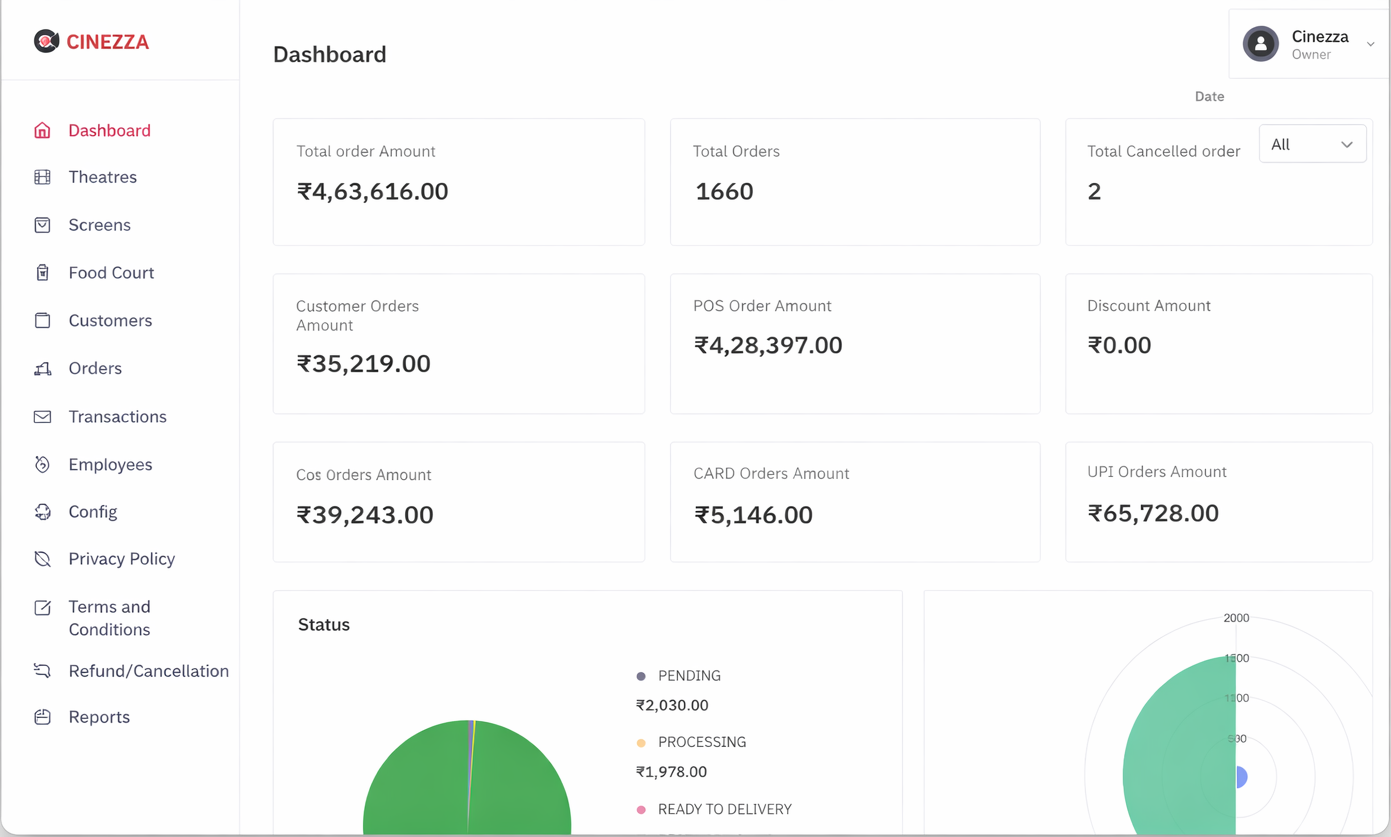
Accept Order and Auto-Print
Review the incoming order and accept it. The receipt prints automatically on your assigned printer as soon as you accept. No manual printing needed.
- Review complete order — items, quantity, seat
- Accept with one tap to confirm the order
- Receipt auto-prints on your assigned printer
- Order status updates to In Progress
Prepare and Mark Order as Done
Prepare the items as per the order receipt. Once the food is ready and delivered to the customer, mark the order as DONE on the POS.
- Prepare items as per the printed receipt
- Deliver food to the customer at their seat
- Mark order as DONE with a single tap
- Order moves to completed and is recorded
Create Walk-in Counter Orders
For customers who walk up to the counter directly select items from the POS menu, generate the order, and print the bill. Same process as a QR order.
- Select items directly on the POS screen
- Add quantities and confirm the order
- Print bill and process payment
- All counter orders are tracked identically
Manage Your Counter Orders
Keep track of all pending and completed orders at your counter. Ensure timely service for both QR orders and walk-in customers throughout your shift.
- View all active orders at your counter
- Filter by PENDING, In Progress, or Done
- Track all orders handled during your shift
- Prioritize and manage order queue efficiently